e-woo scraper logo
Back to all articles
May 28, 2026

WooCommerce to Shopify Migration Made Easy with E-Woo Scraper

⚡ Try E-Woo Live Preview Scraper

Paste any WooCommerce store URL below to extract the first 3 products instantly.

WooCommerce to Shopify Migration Made Easy with E-Woo Scraper

The Challenge of E-commerce Store Migration

Deciding to transition your e-commerce business from self-hosted WooCommerce to Shopify is a major strategic move. While WooCommerce offers incredible flexibility, many store owners choose Shopify to reduce server maintenance, improve check-out speeds, and simplify scaling. However, the migration itself is often a daunting hurdle.

Moving a product catalog manually is out of the question for stores with more than a few items. Standard database exporters frequently generate complex, unformatted XML or database SQL files that cannot be directly imported into Shopify. This is where an e-commerce Data Scraper becomes your most valuable migration tool, converting web pages directly into structured Shopify spreadsheets.

Many store owners face the risk of data loss during migration. Missing description details, lost tags, broken image gallery links, or corrupted SKU alignments can ruin store layout and user experience on Shopify. To prevent these launch-day failures, you need an automated translation engine that structures WooCommerce metadata to match Shopify requirements natively. By utilizing a high-performance WooCommerce Scraper, you can download all storefront data and transform it into a Shopify import-ready file within minutes.

Why Manual Column Mapping is a Nightmare

WooCommerce and Shopify use completely different database structures to represent products. For example, WooCommerce stores product attributes (like size and color) using taxonomy terms, while Shopify uses option columns. If you export a standard CSV from WooCommerce, you will need to spend hours inside Excel or Google Sheets remapping column headers, merging variation rows, and matching image links.

A single formatting mistake can cause the Shopify importer to fail or, worse, import products with missing variations and broken image links. Using a custom parser like ewoo scraper eliminates this step. It scrapes the frontend of your WooCommerce site, automatically remapping product data to match the strict CSV layout required by Shopify.

The manual mapping nightmare also extends to variant image assignment. In WooCommerce, images are stored in the media library and referenced via local database IDs. In Shopify, each variant must point to an absolute HTTP web URL. Resolving these asset paths manually across hundreds of products is an error-prone task that can delay your migration timeline by weeks.

Furthermore, standard exporter plugins fail to map the "Handle" structure of Shopify correctly, leading to duplicated products or broken URL links. An automated scraper resolves this by generating unique, URL-safe handles for every product page it extracts.

How E-Woo Scraper Simplifies the Migration Journey

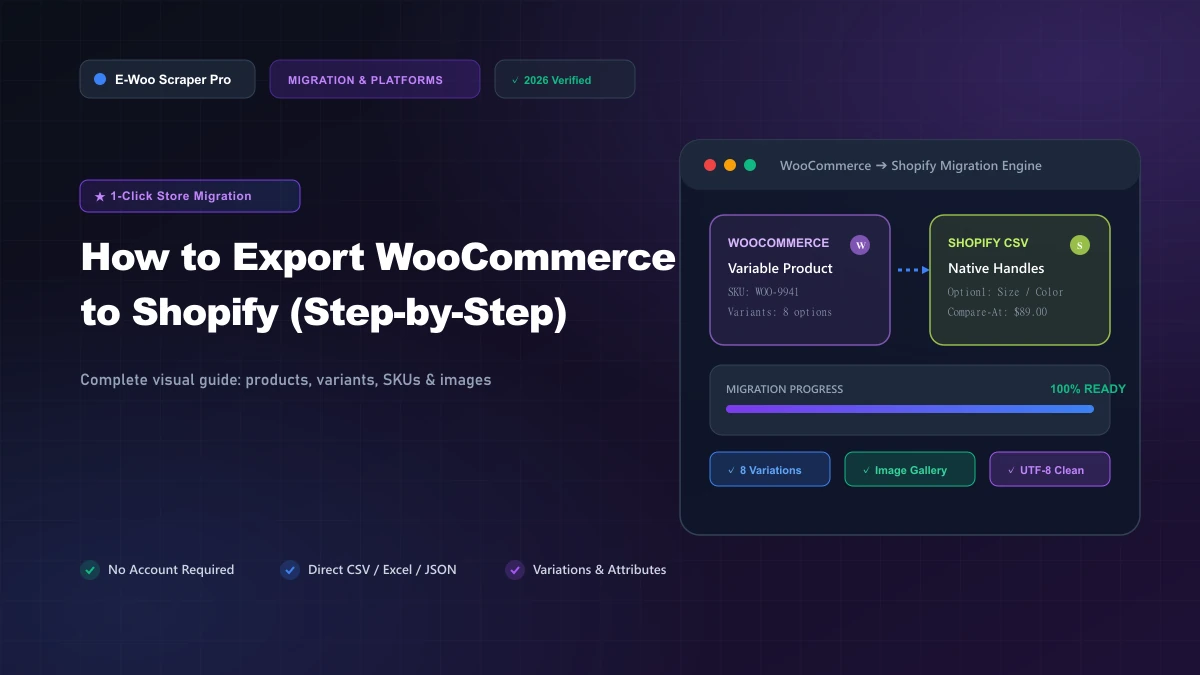
The ewoo scraper acts as an intelligent translator between the two platforms. By scanning your WooCommerce catalog from the front-end, it captures all necessary details and prepares them for an easy upload. Here is how E-Woo Scraper streamlines the migration process:

  • Automatic Variant Assembly: It groups WooCommerce variants under single parent handles, satisfying Shopify's product option architecture.
  • Media URL Preservation: It collects high-resolution product images and maps them to Shopify's image columns. Shopify will automatically download and host these images during the CSV upload.
  • SEO Meta Preservation: Preserves original meta titles, descriptions, and slugs to prevent losing search engine visibility after the move.
  • Automated Tag and Collection Mapping: Converts categories and tags into Shopify-compatible fields, ensuring your automatic collections populate immediately.

By avoiding manual database exports and relying on a dedicated web extraction utility, you can ensure that all elements — including inventory stock status, weight coordinates, regular prices, and variations — are imported into Shopify with 100% accuracy.

A Simple 4-Step Migration Playbook

By using E-Woo Scraper, migrating your products to Shopify is a matter of minutes. Here is the exact playbook to follow:

  1. Scan your WooCommerce Store: Enter your old WooCommerce store URL in E-Woo Scraper to extract the full catalog. Make sure to use the Free WooCommerce Scraper playground first to verify that all product layouts are captured perfectly.
  2. Select Shopify Format: Once the scraping job is complete, go to your dashboard, click "Export", and select "Shopify CSV format".
  3. Upload to Shopify: In your Shopify admin panel, go to Products, click Import, select the downloaded CSV file, and click upload.
  4. Run a Database Audit: Review the imported listings on Shopify to verify options, descriptions, pricing tiers, and image attachments.

This streamlined workflow replaces expensive migration agencies and complicated database sync plugins. You can perform the transfer on your own schedule, maintaining full control over your product data.

Crucial Tips for a Successful Migration

During the migration process, it is critical to keep your old WooCommerce store online. Do not shut down your hosting server immediately. Shopify requires access to the WooCommerce image URLs inside the CSV to download the media files to its own servers. Once you verify that all images are hosted in your Shopify library, you can safely update your domain nameservers and shut down the old host. Furthermore, create a URL redirect map to forward old WooCommerce product slugs to their new Shopify paths, preserving your SEO rankings and organic search traffic. Take the hassle out of migration by using E-Woo Scraper to export Shopify-ready data today!